Like to comfortably view and edit images from the Jamew Webb Space Telescope like an astronomer ?
Then follow this step by step cheatsheet guides if you are using windows on a PC .
Main Software Components
There are three key software components required:
- Microsoft C++ 14
- Jupyter Notebook (Python)
- Jdaviz
Additonal
- MAST Token to be able to download the images with Imviz.
Prerequsites:
Microsoft Visual C++ 14.0 or greater

If Microsoft Visual C++ 14.0 or greater is not installed, the installation of Jdaviz will fail. Without Jdaviz the downloaded images from the James Webb Space Telescope cannot be edited.
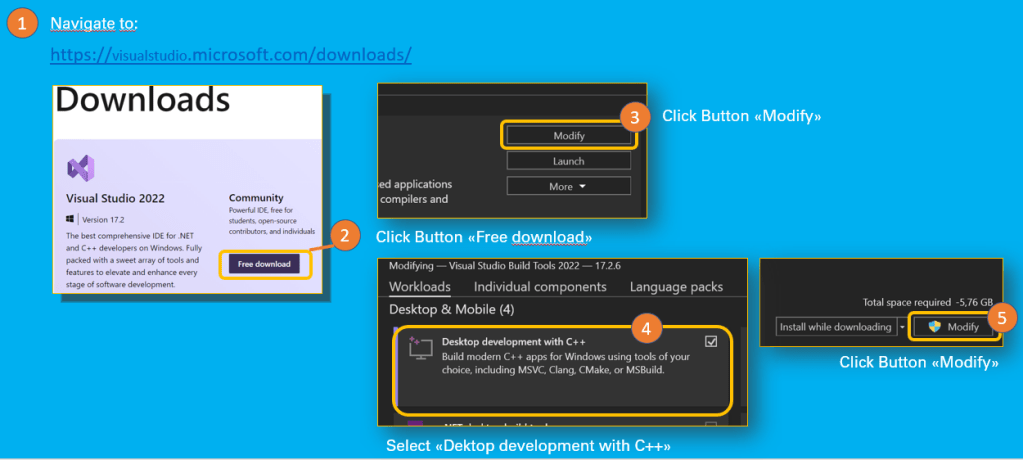
How to install Microsoft Visual C++
- Navigate to: https://visualstudio.microsoft.com/downloads/
- Download Visual Studio 2022 Community version
- Follow the instructions in this post: Install C and C++ support in Visual Studio | Microsoft Docs
MAST Token
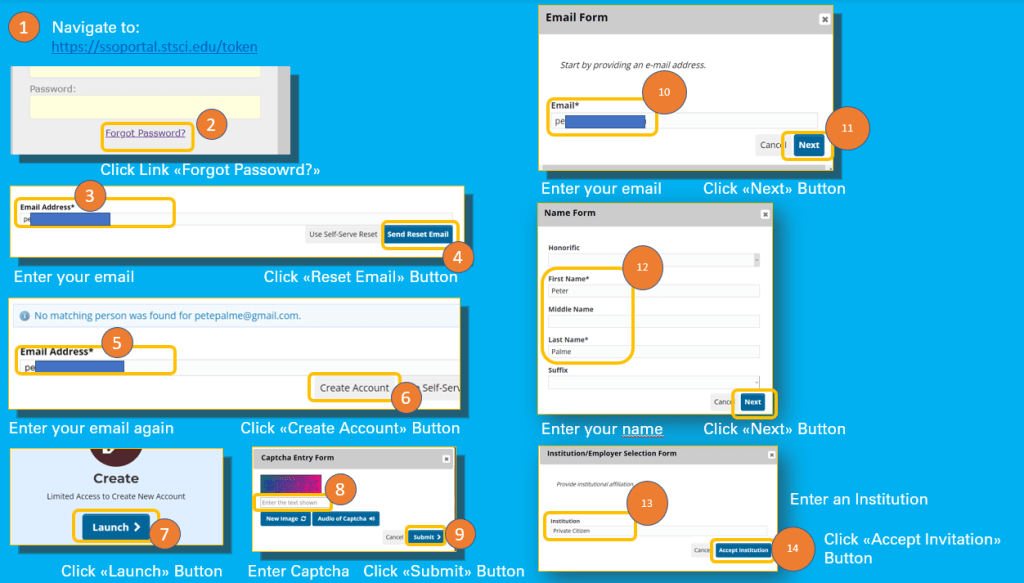
- Navigate to https://ssoportal.stsci.edu/token
If you do not have not an account yet, please follow below steps to create your account:
- Click on the Forgotten Password? link
- Enter your email Adress
- Click Send Reset Email Button
- Click Create Account Button
- Click Launch Button
- Enter the Captcha
- Click Submit Button
- Enter your email
- Click Next Button
- Fill in the Name Form
- Click Next Button
- Fill in the Insitution (e.g. Private Citizen or Citizen Scientist)
- Click Accept Institution Button
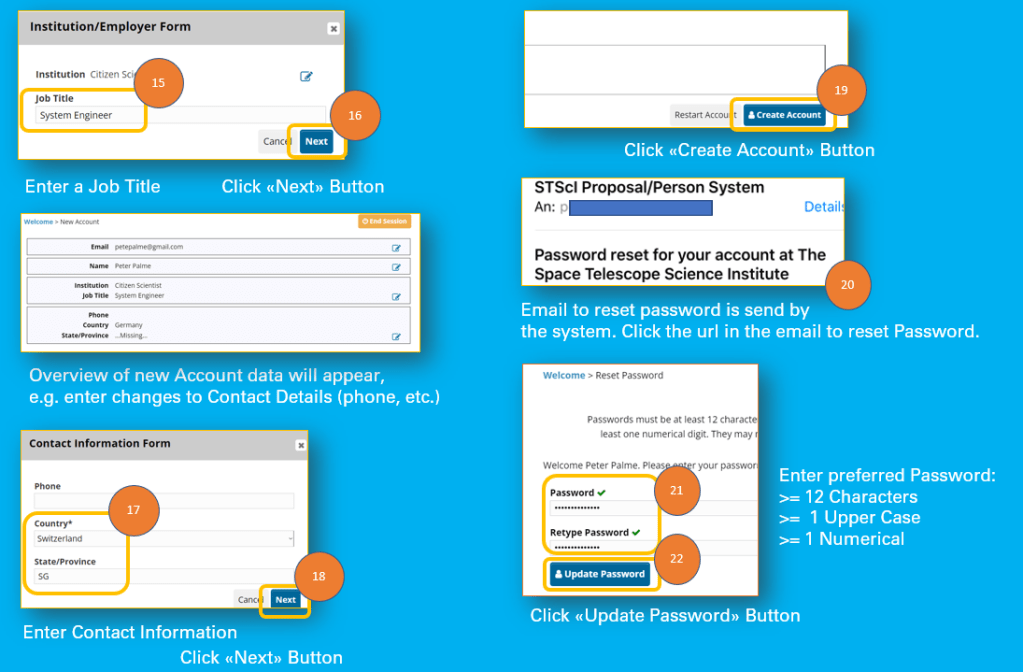
- Enter Job Title (whatever you are or like to be ;-))
- Click Next Button
- New Account Data for your review is presented, in case of missing contact data, step 17 might be necessary
- Fill in Contact Information Form
- Click Next Button
- Click Create Account Button
- In your email account open the reset password emal
- Click on the link
- Enter Password
- Enter Retype Password
- Click Update Password
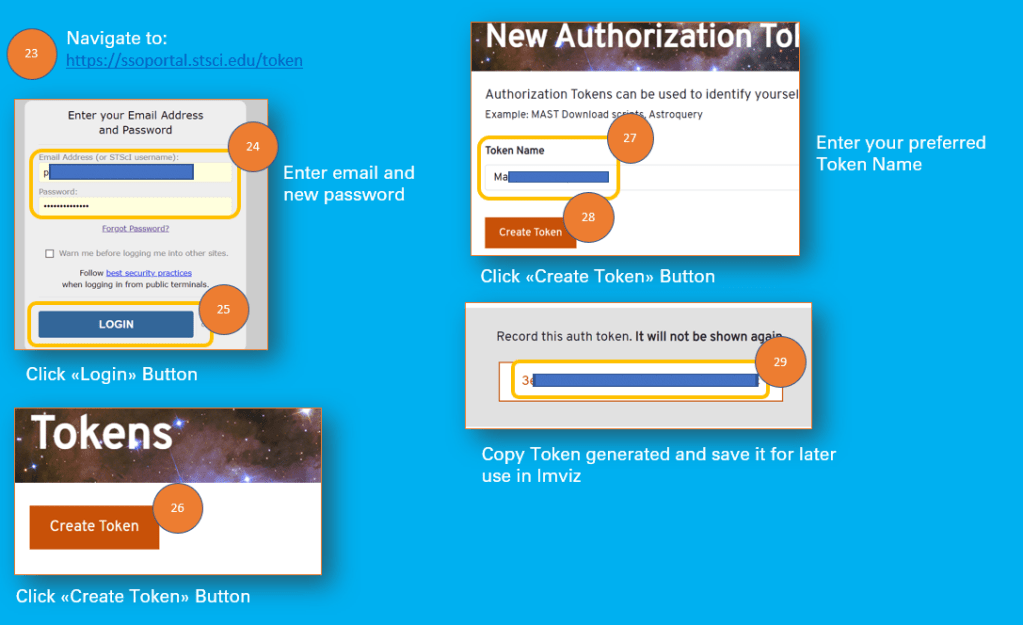
- Navigate to https://ssoportal.stsci.edu/token
- Now log on with your email and new account password
- Click Create Token Button
- Fill in a Token Name of your choice
- Click Create Token Button
- Copy the Token Number and save it for later use in Imviz to download the images from the James Webb Space Telescope
Quite a lot of steps for a Token.
Jupyter Notebook
Jupyter notebook comes with the ananconda distribution.
- Navigate to: https://www.anaconda.com/products/distribution#windows
- Follow the instructions at: https://docs.anaconda.com/anaconda/install/windows/
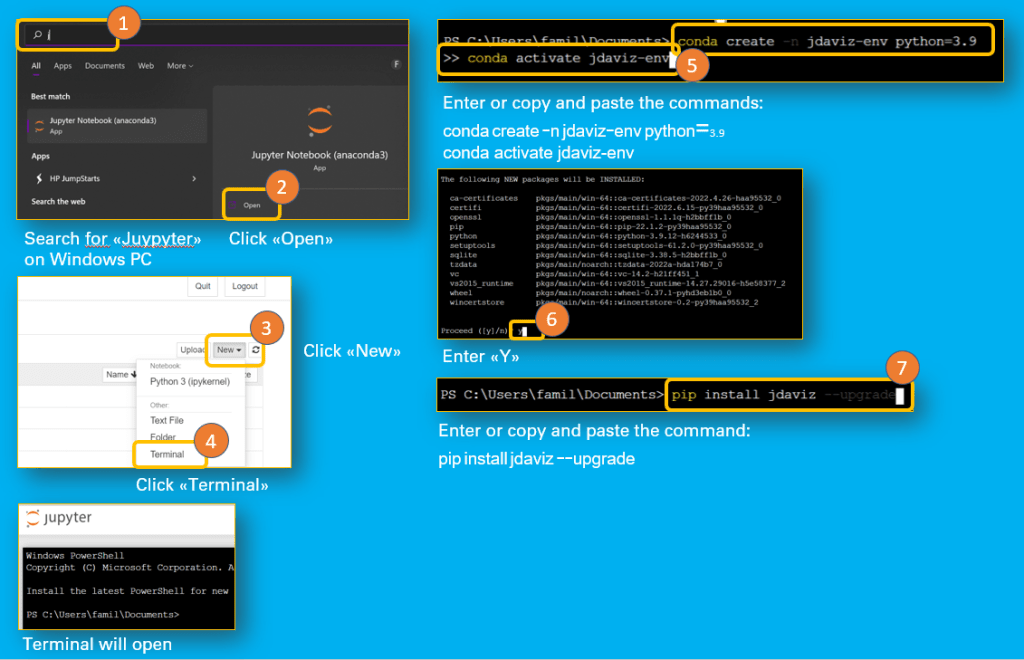
Install Jdaviz
- Navigate to: Installation — jdaviz v2.7.2.dev6+gd24f8239
- Open the Jupyter Notebook
- Open Terminal from Jupyter Notebook
- Follow the instruction in: Installation — jdaviz v2.7.2.dev6+gd24f8239
How to use IMVIZ
Imviz is installed together with Jdaviz.
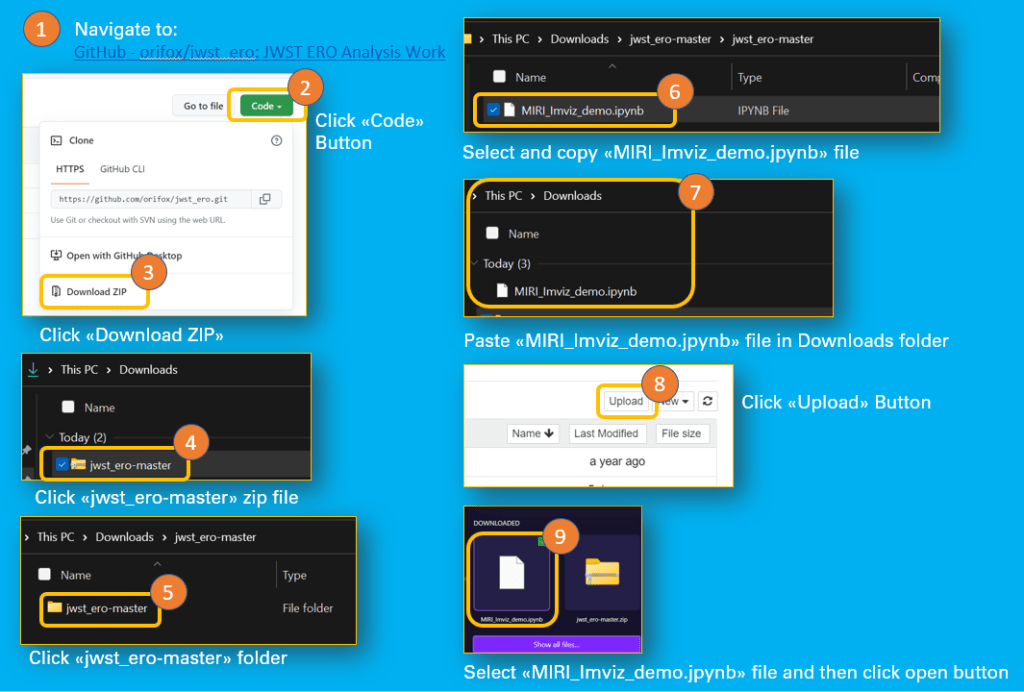
Following steps to take in order to use Imviz:
- Navigate to: GitHub – orifox/jwst_ero: JWST ERO Analysis Work
- Click Code Button
- Click Download Zip
- If you do not have unzip, then the next steps might work for you:
- In Download Folder (PC) click the jwst_ero master zip file
- Then click on the folder jwst_ero master
- Copy file MIRI_Imviz_demo.jpynb
- Paste the file in the download folder
- Open Jupyter notebook
- Click Upload Button
- Select the file MIRI_Imviz_demo.jpynb
- Click Open Button
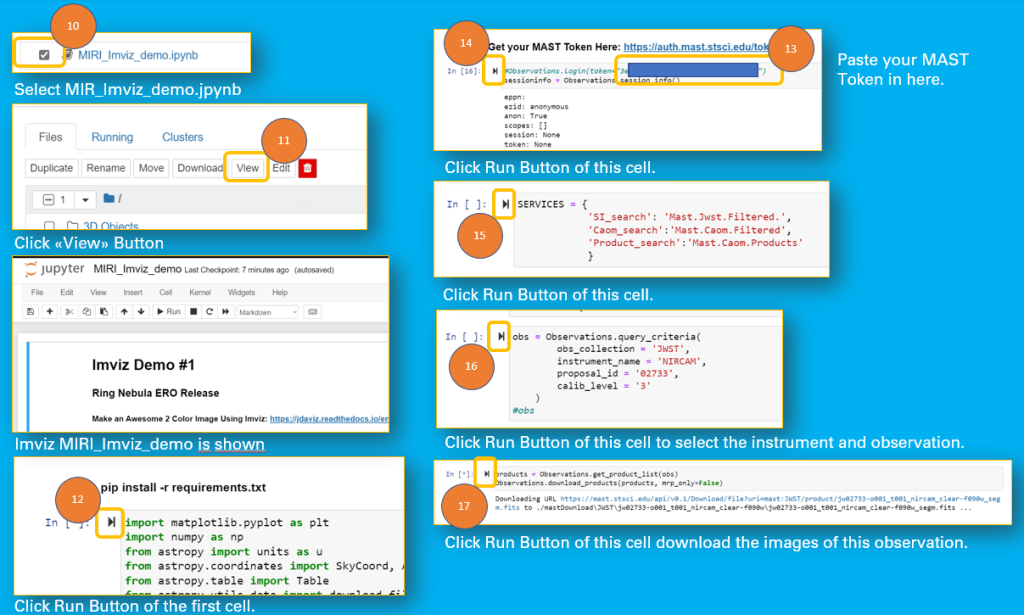
- Select the file MIRI_Imviz_demo.jpynb in the Jupyter Notebook file list
- Click View Button
- Click Run Button First Cell
- Paste MAST Token in next cell
- Click Run Button of this Cell
- Click then Run Button of next Cell
- Click Run Button of the following Cell
- Click Run Button of the next Cell to download the images
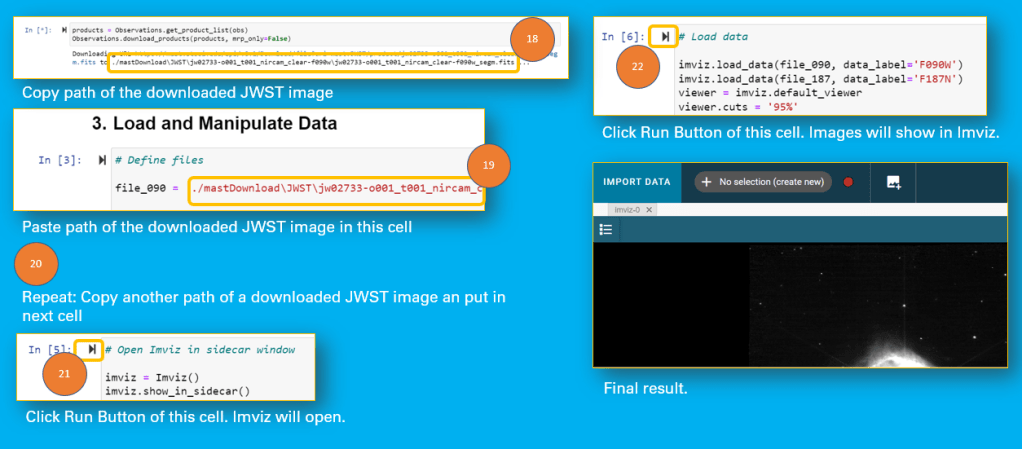
- Copy the link to the downloaded image file
- Past link into the First Cell in 3. Load and Manipulate Data
- Do the same in the next Cell
- Click Run Button of the Cell to open Imviz
- Click Run Button on the next Cell to load images in Imviz
Now all set to download the images of the JWST observation:
And now all is set to open and edit the images in Imviz
And finally you are ready to follow the video tutorials in order to learn how to use Imviz to manipulate the JWST images.
Video Tutorials for Imviz:
And this is the master Ori Fox of the Imviz demo notebook file if you like to follow him on Twitter
 Circular Astronomy